A quick and easy way to submit without an accountant the quarterly updates to HMRC for Making Tax Digital (MTD) for Income Tax for Self-Employed working in the construction industry using your own spreadsheet

AB3K9X
If you are a Self-Employed working in the Construction Industry who wants to submit, without an accountant, the quarterly updates to HMRC for Making Tax Digital (MTD) for Income Tax and you are using your own spreadsheet to track your income and expenses, here is an easy a quick way to do it.
First of all, a quick background:
- To submit quarterly updates to HMRC, you are not legally required to use an accountant, but you do need to use a HMRC-Recognised software like MTD 4 Income Tax.
- If your total income from self-employment is less than the VAT registration threshold (currently £90,000) you can choose not to categorise your expenses and sum them all together in one single box, called consolidated expenses.
- In the turnover box, you need to report the total gross turnover, that is the full amount invoiced before tax deductions. So, if you received a deducted amount then you need to work out the gross amount. Please note, if you use your bank transactions to report the income, make sure it is the gross amount and not the deducted one.
- In the consolidated expenses box, you need to report the total expenses, such as: materials, tools, equipment and so on.
- Reporting the deducted amount is optional for MTD, however it is mandatory when sending the Tax Return.
Go to the Software Page and click to the 'here' link:
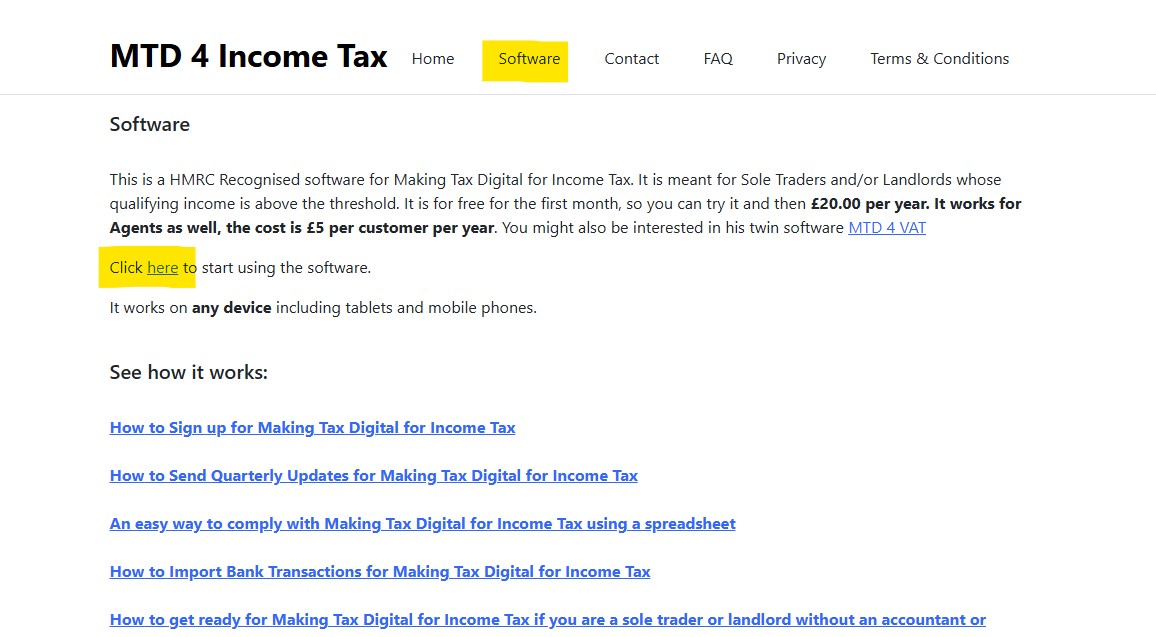
This will open the software, click on the Register link:
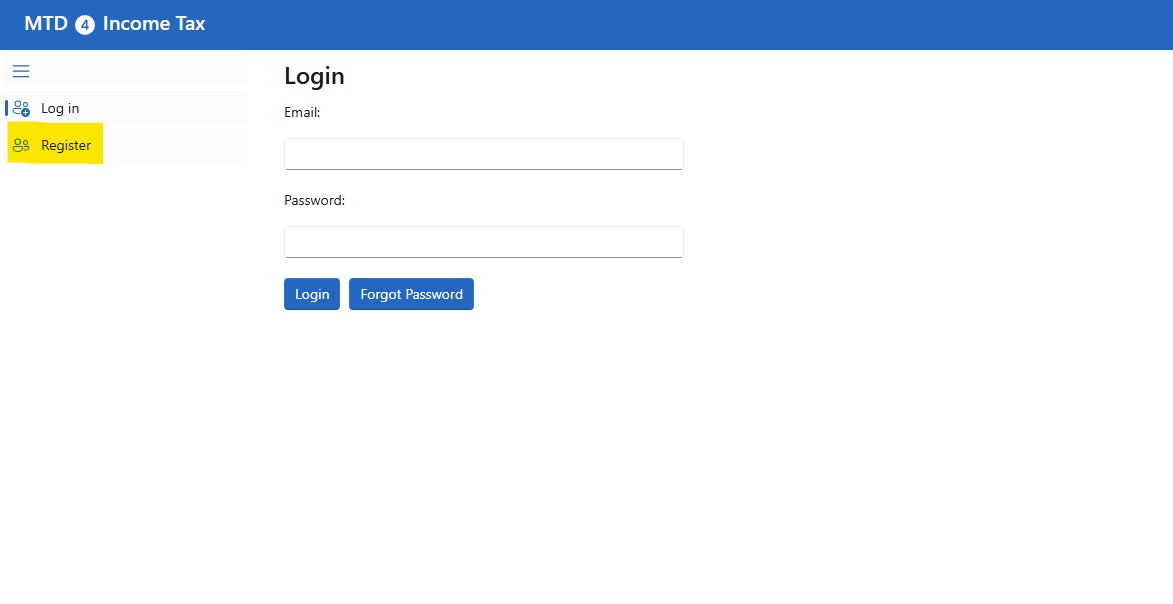
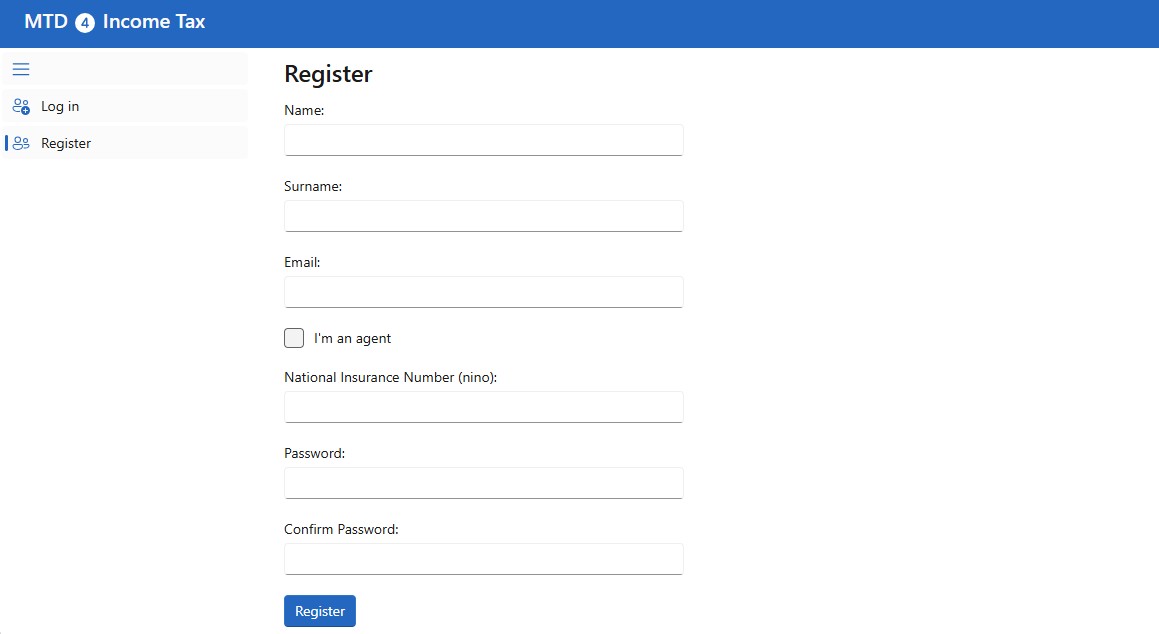
Get registered by inserting your Name, Surname, National Insurance Number, Email and Password. You can use this software and send a quarterly update for free for the first month, then it is £20 per year.
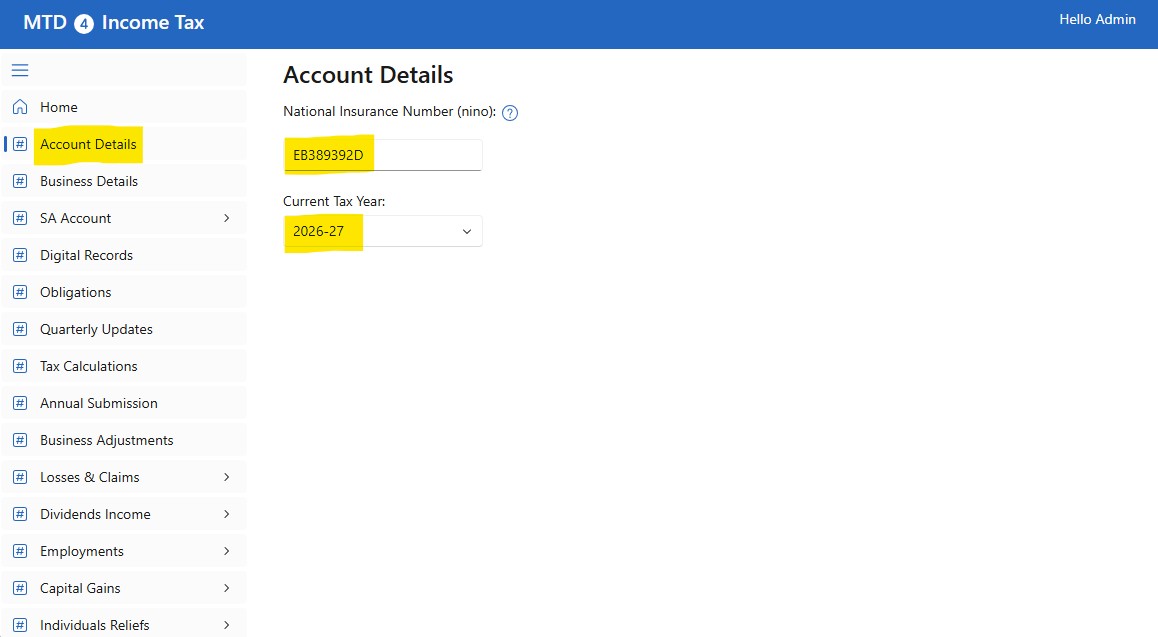
After the registration, login to the software. Go to the Account Details page, add your National Insurance Number and select the Current Tax Year:
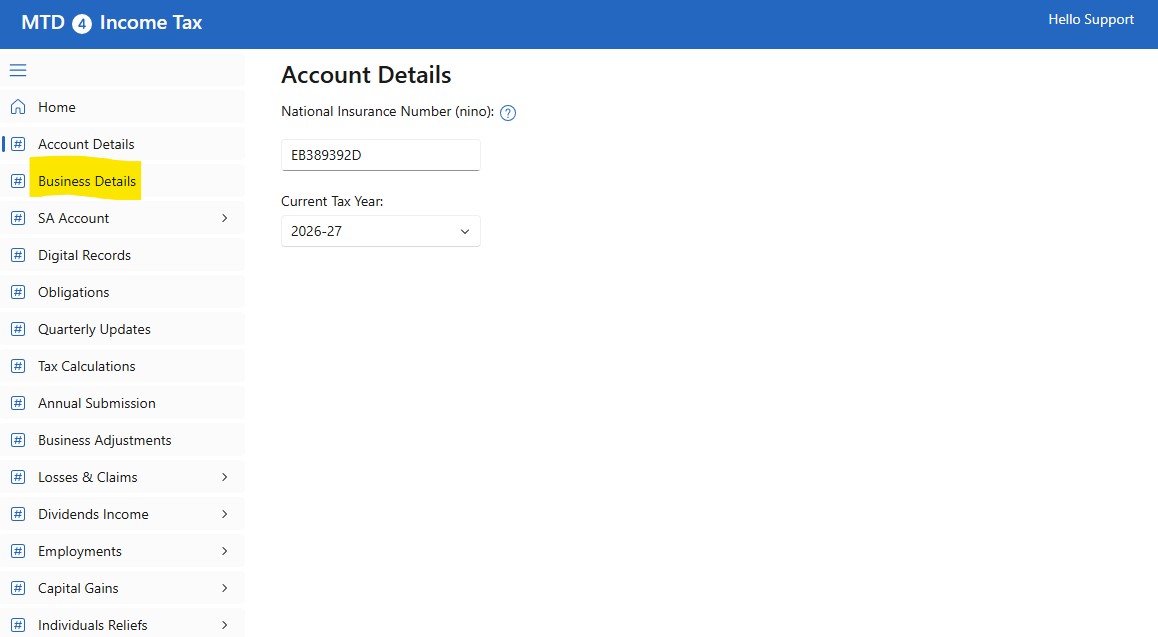
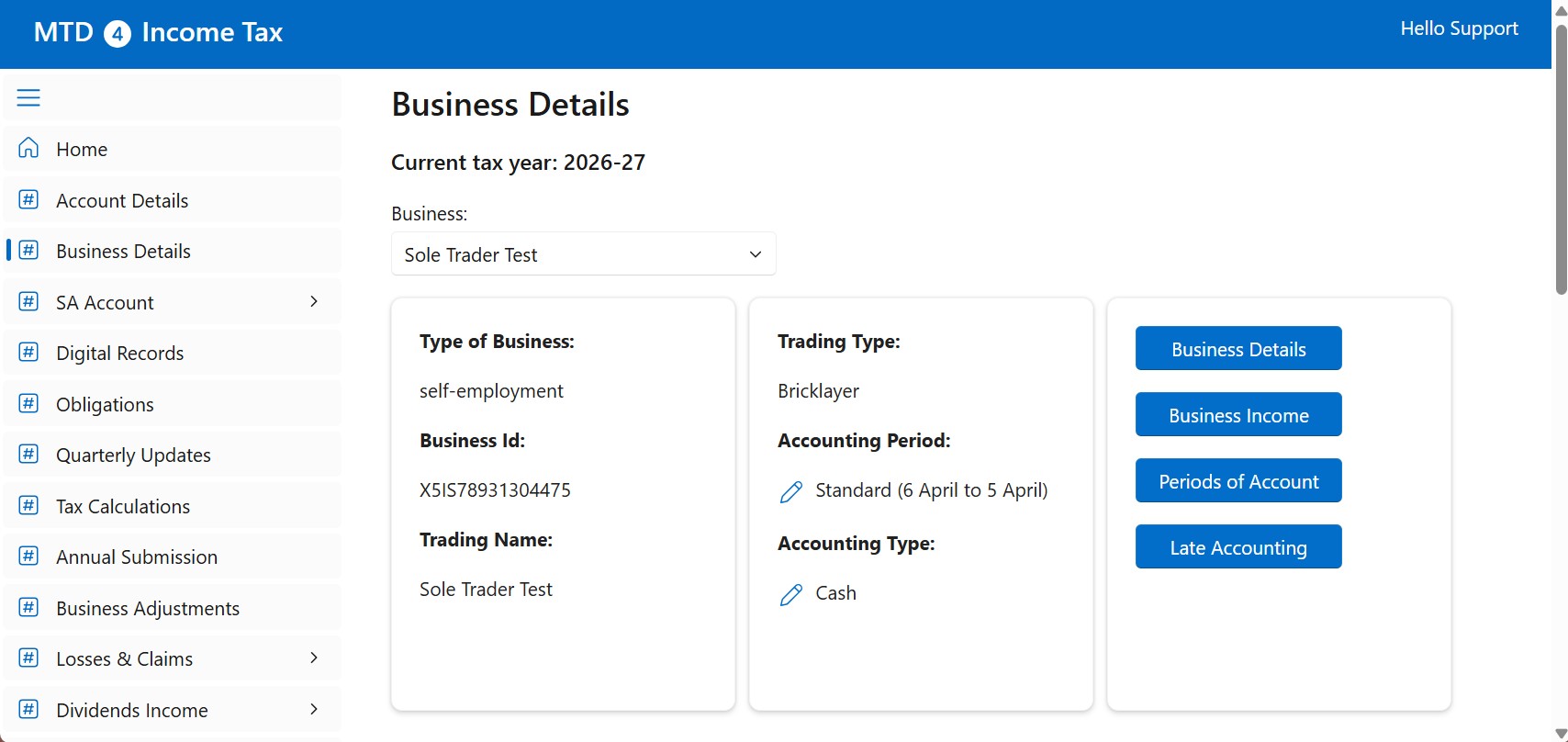
Click on Business Details:
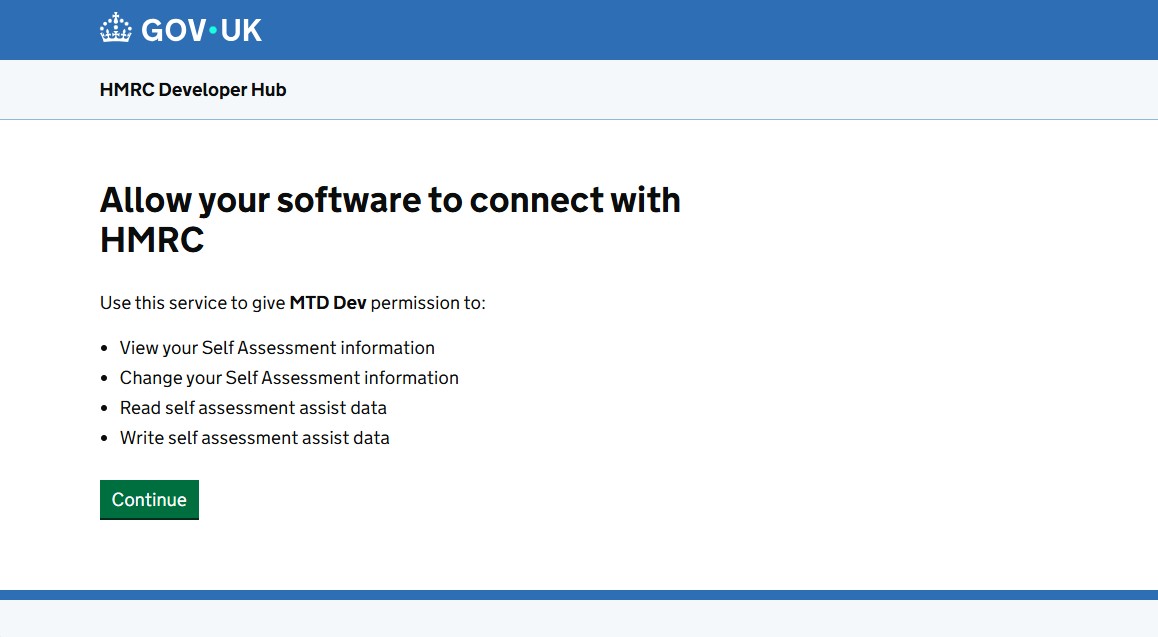
The first time you'll be redirected to the HMRC portal to give permission to the software to access your account, please note, the software does not collect any of your Personal or Financial Data. After you give the consent, HMRC will return a token which will be used by the software to access your account.
Go back to the Business Details page, if you do not see your Business, normally, it is because you have not registered for MTD. To sign up for MTD click here
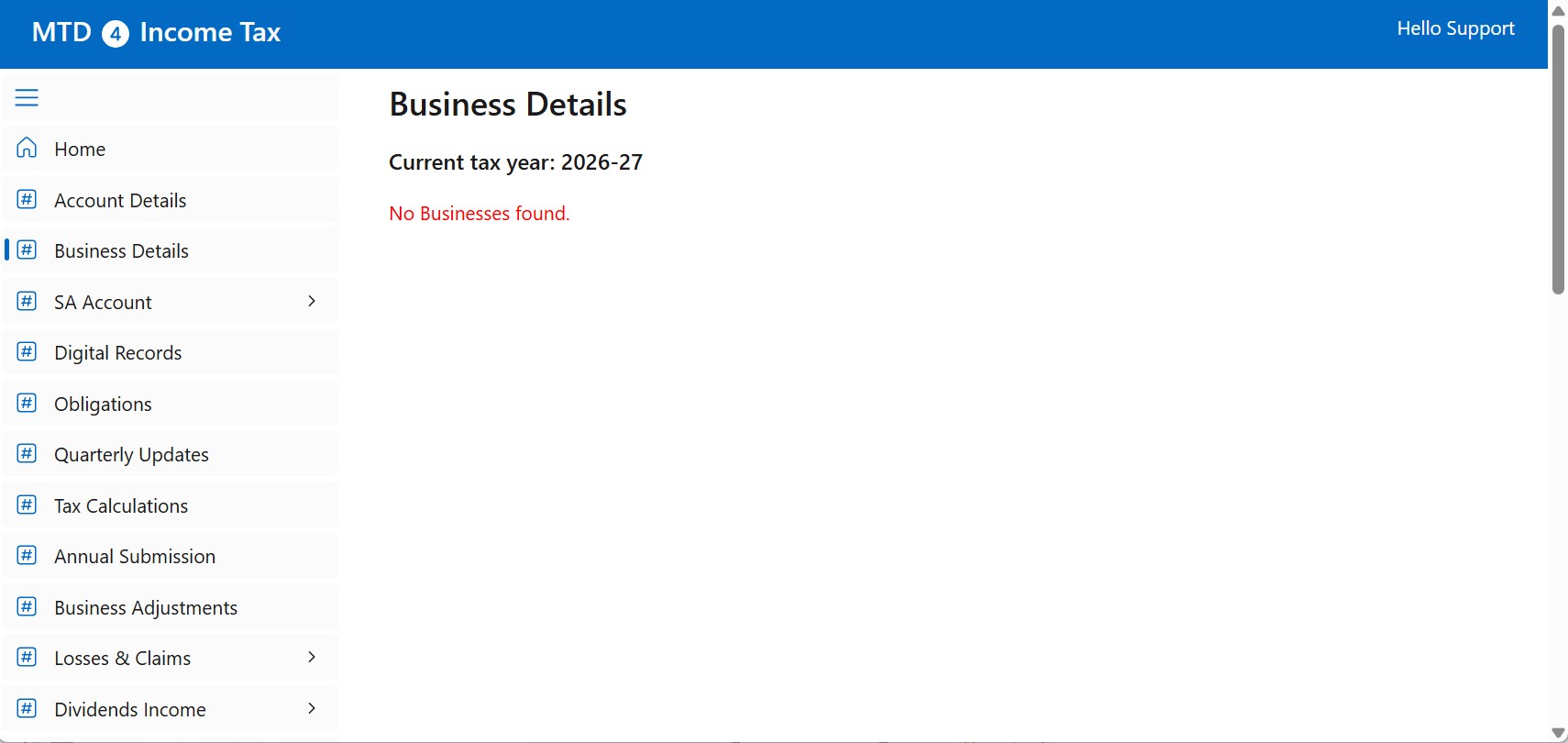
If you see your Business, then, everything is ok.
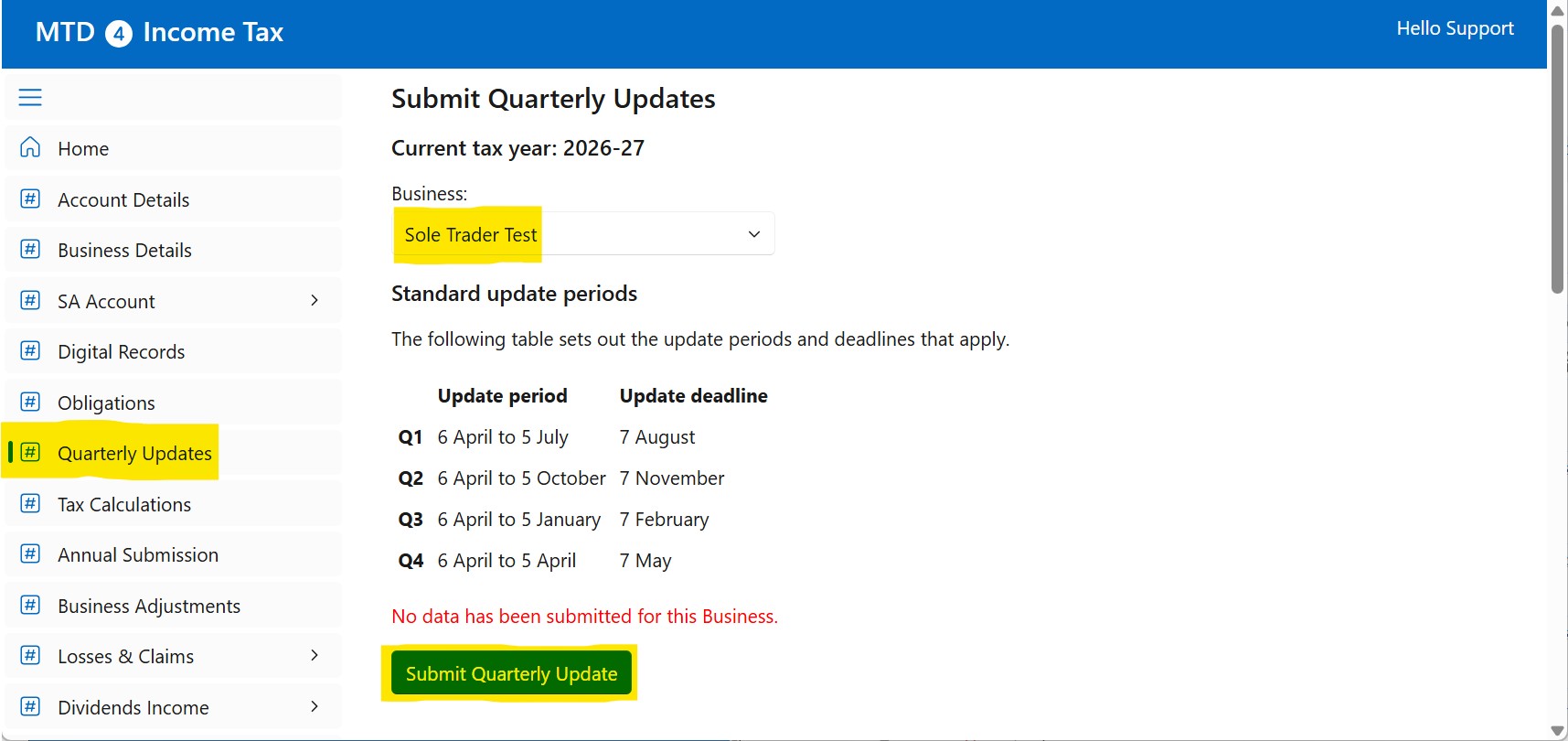
Go to the Quarterly Update page, select a Business from the list and click on the Submit Quarterly Update button:
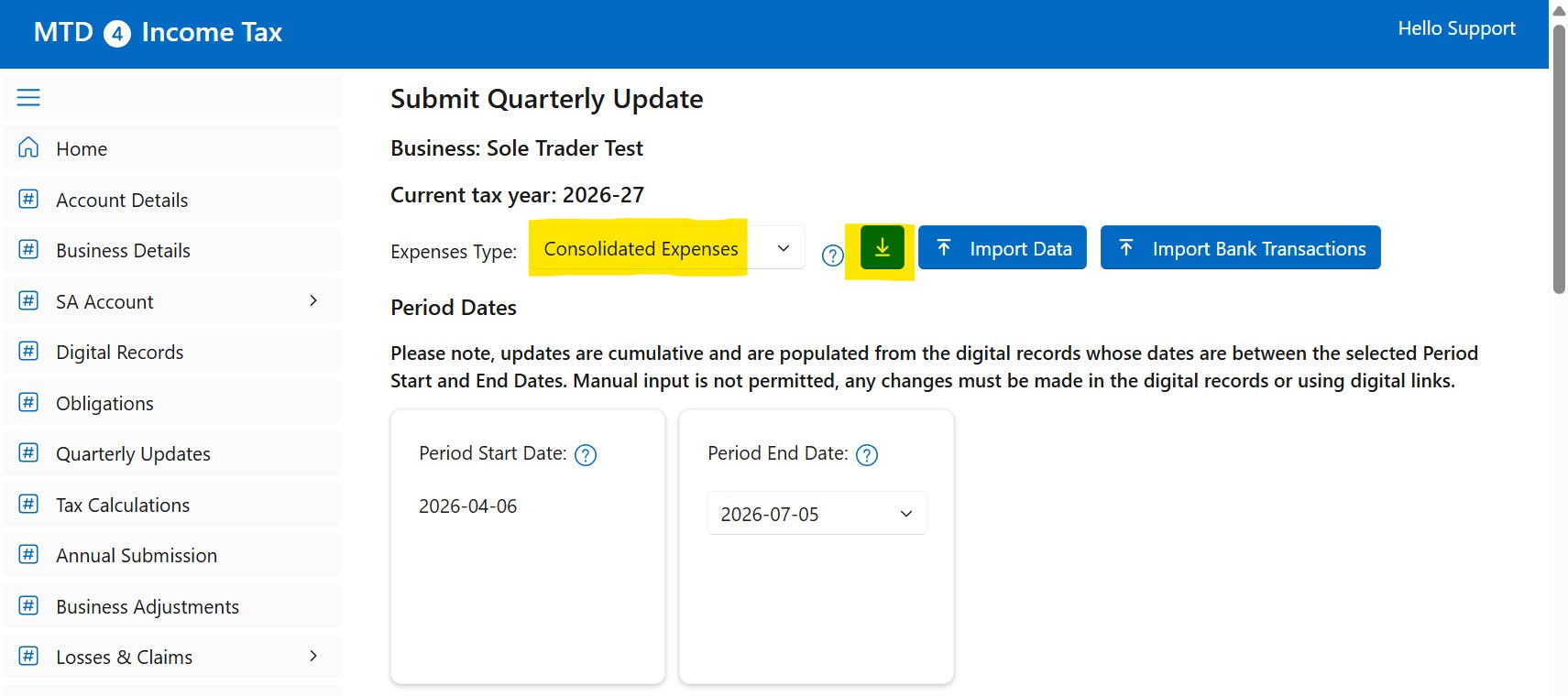
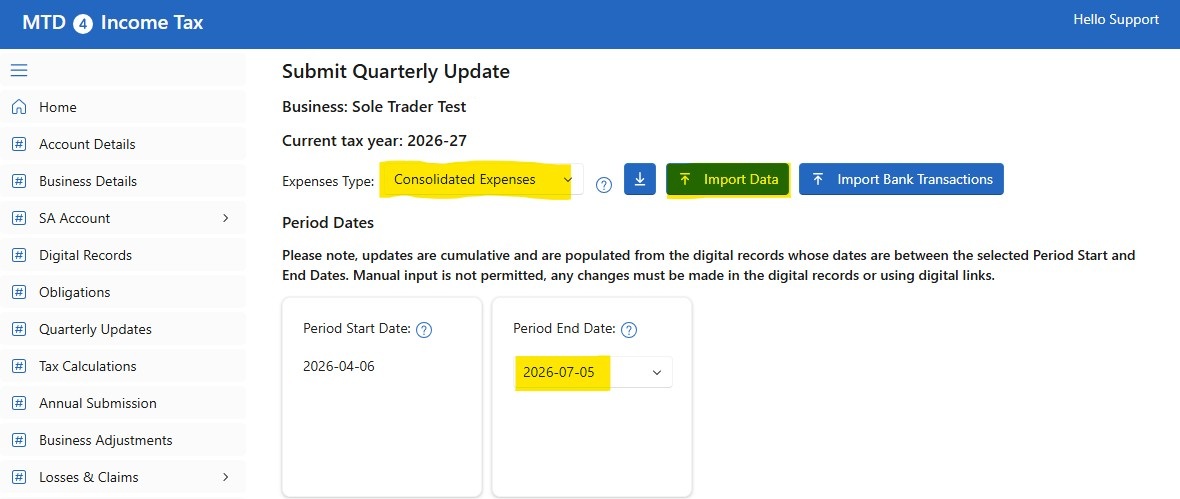
Make sure you select the Consolidated Expenses option and click on the Down Arrow button to download the Template
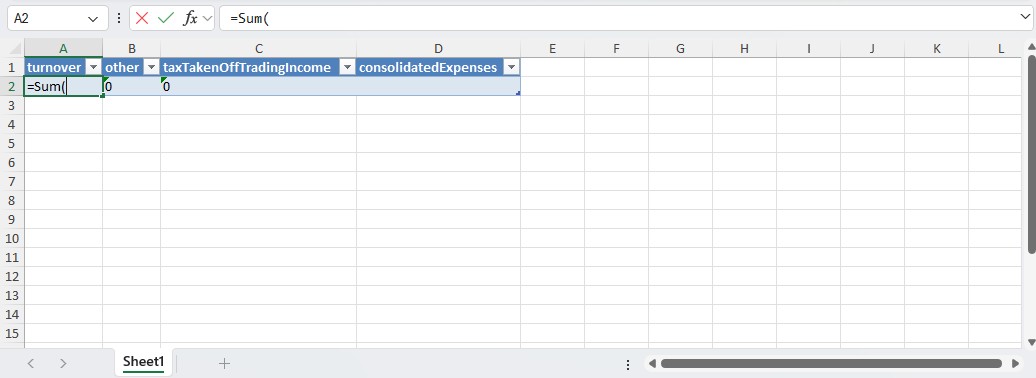
The Template is a spreadsheet that looks like this:
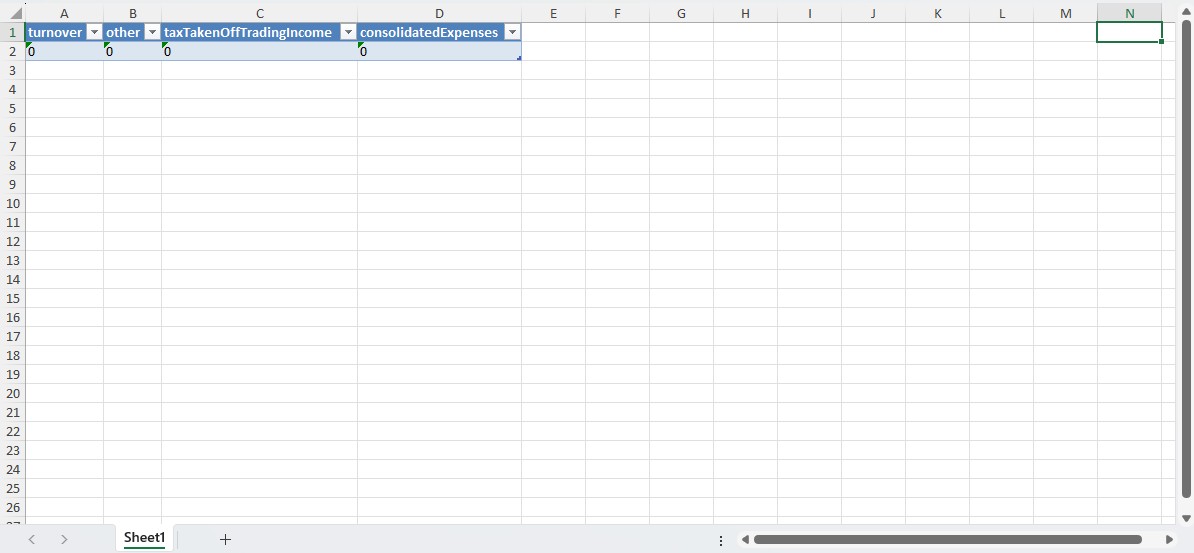
where:
- turnover: The takings, fees, sales or money earned by your business. Income associated with the running of the business. The value must be between 0 and 99999999999.99 up to 2 decimal places.
- other: Any other business income not included in turnover. Income associated with the running of the business. The value must be between 0 and 99999999999.99 up to 2 decimal places.
- taxTakenOffTradingIncome: Other tax taken off trading income apart from CIS deductions. The value must be between 0 and 99999999999.99 up to 2 decimal places.
- consolidatedExpenses: The sum of all allowable expenses for the specified period. The value must be between -99999999999.99 and 99999999999.99 up to 2 decimal places.
Let's assume your spreadsheet has a two sheets, one for Income and one for the Expenses. In the template, in cell A2, type =Sum(
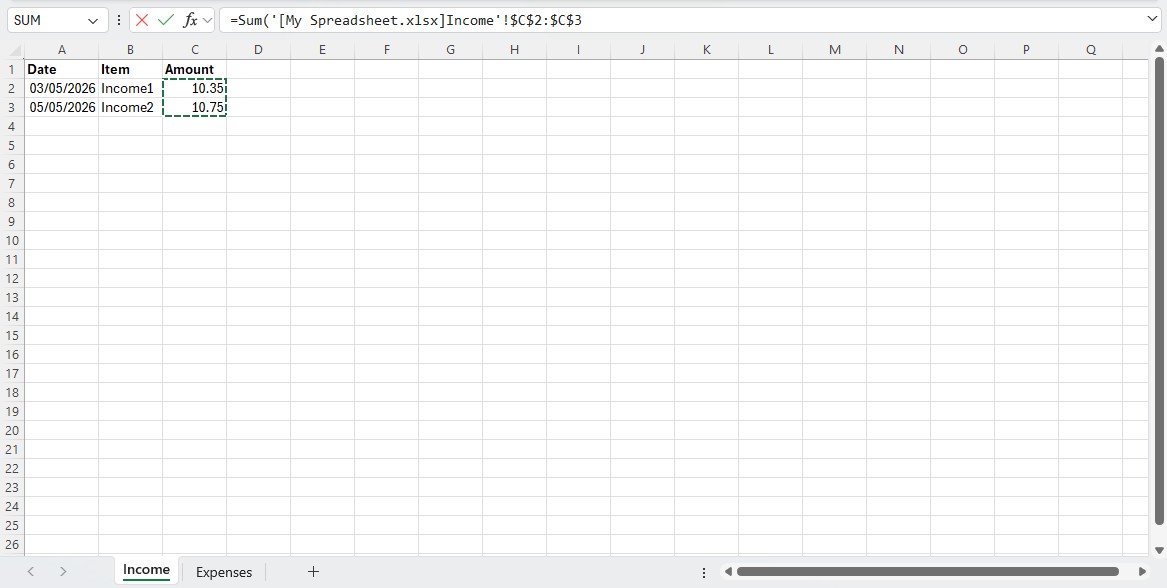
then open your Spreadsheet and in the Income sheet, select the cells for income you want to submit:
then go back to the template and in the A2 cell, type )
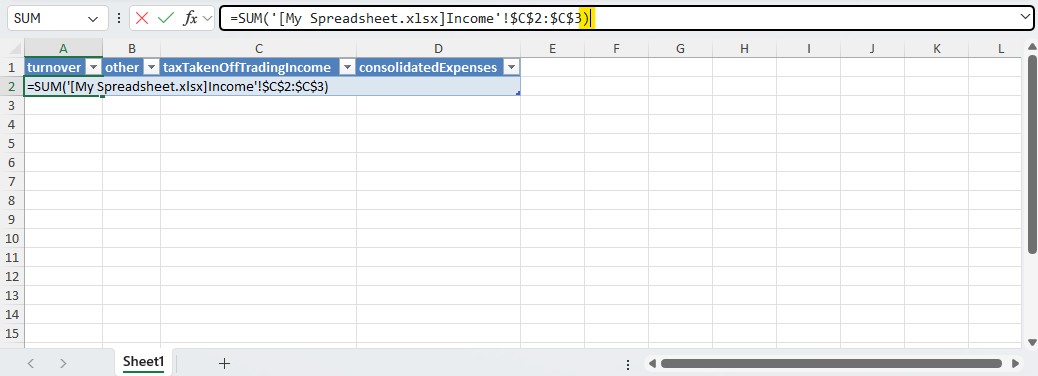
This creates a digital link to get the total income. Do the same for the expenses
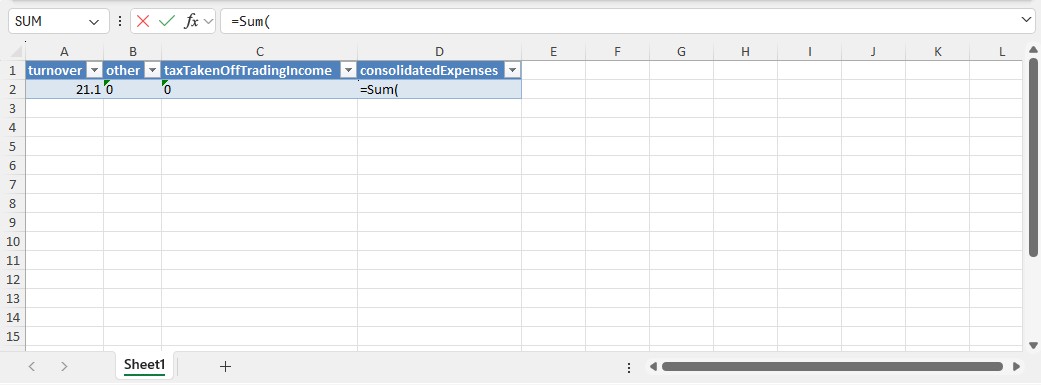
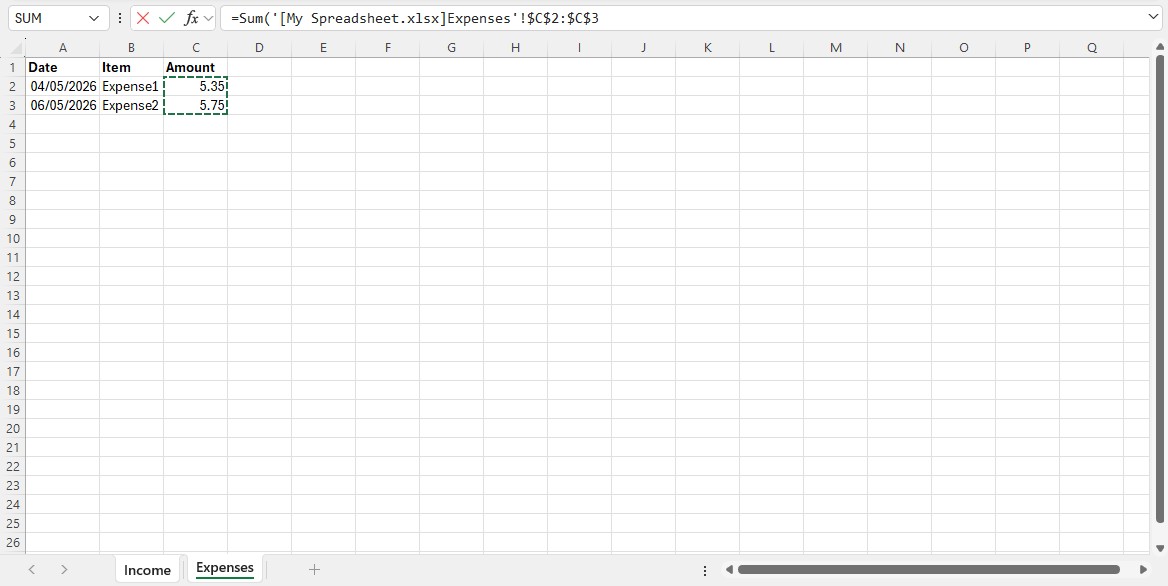
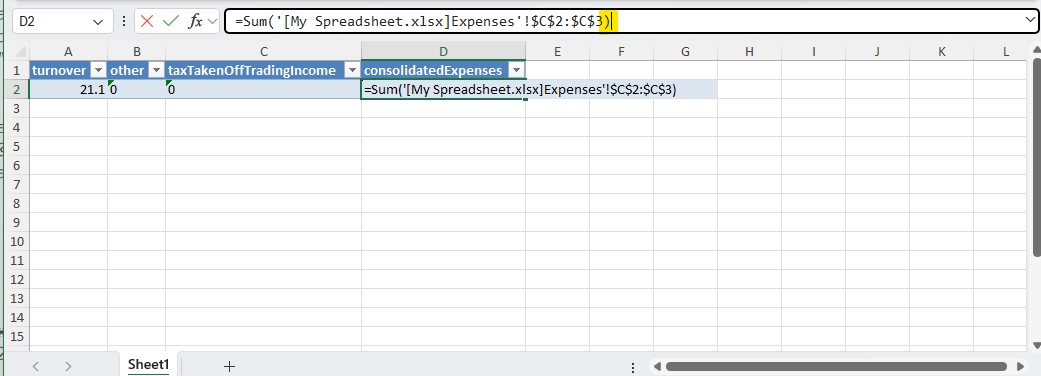
The Template is ready to be Uploaded.
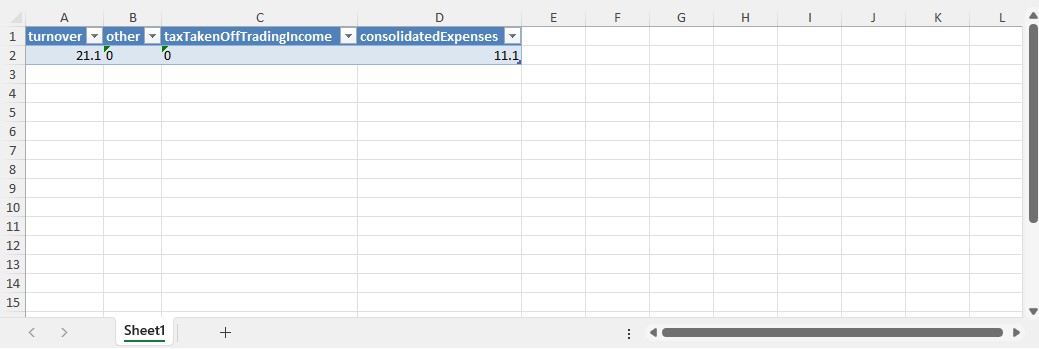
Click on the Import Data button and select the template you have just set up.
Make sure you have selected the right End Date and the numbers are as you expected. If, so, click on the Submit button
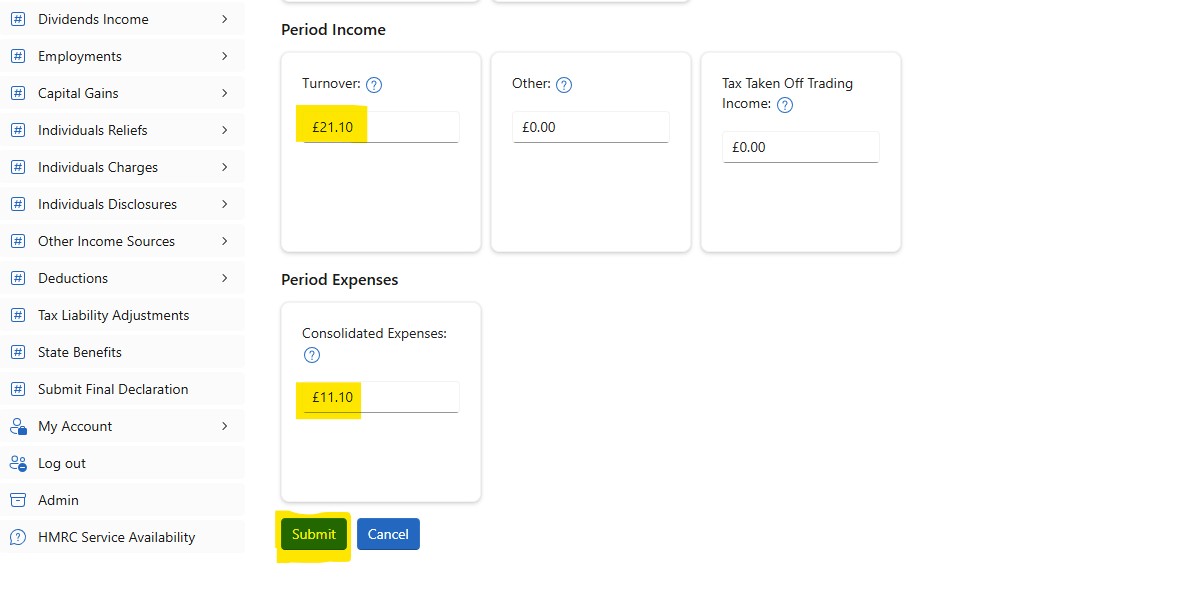
The Submission for Sole Trader Test is complete.
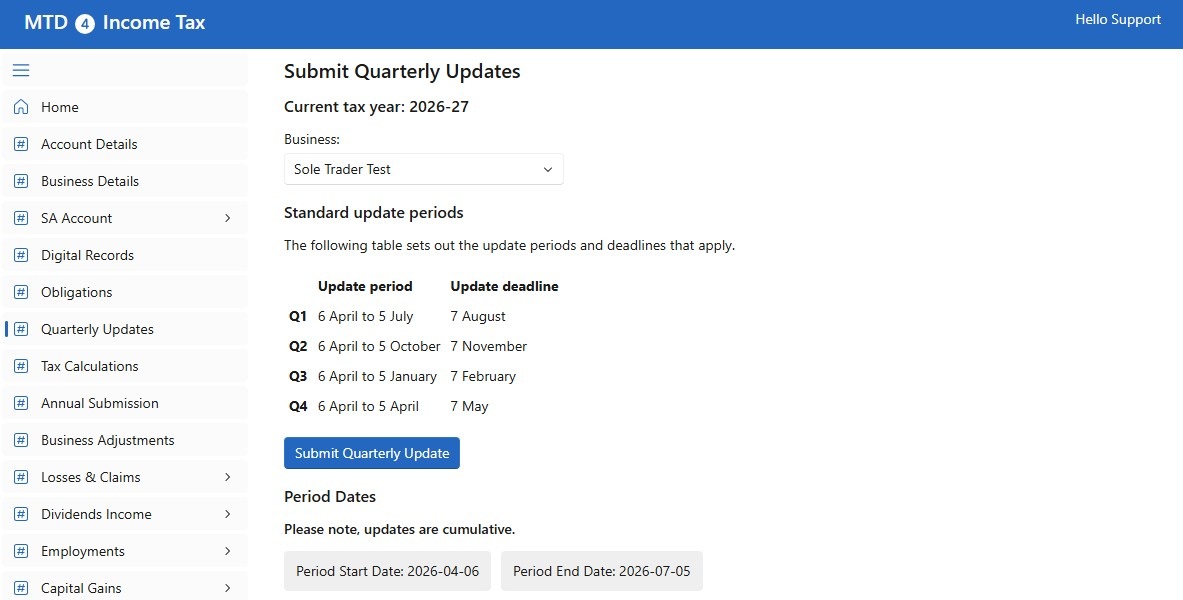

Now, you can send your data about the Construction Industry Scheme (CIS), bear in mind, this is optional for MTD, but it is mandatory when sending the Tax Return.
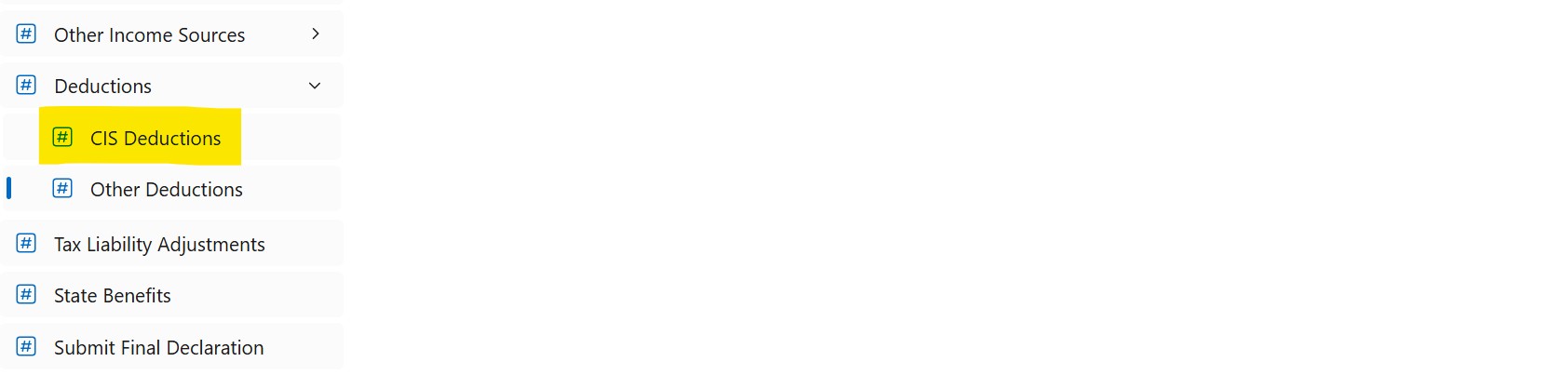
On the main menu, click on the Deductions item and then on the CIS Deductions sub-item:
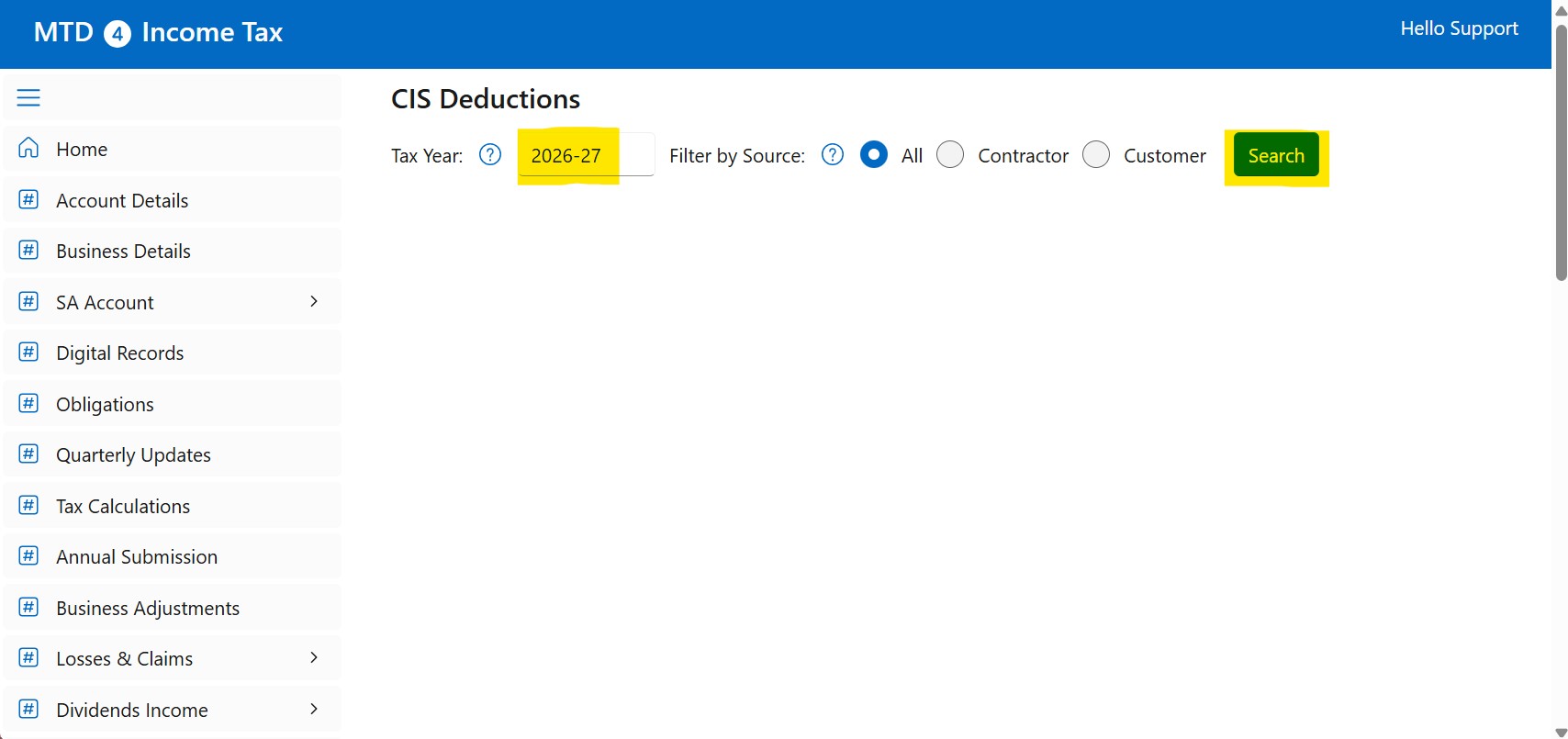
In the CIS Deductions form, type the Tax Year in the format YYYY-YY and click on the Search button::
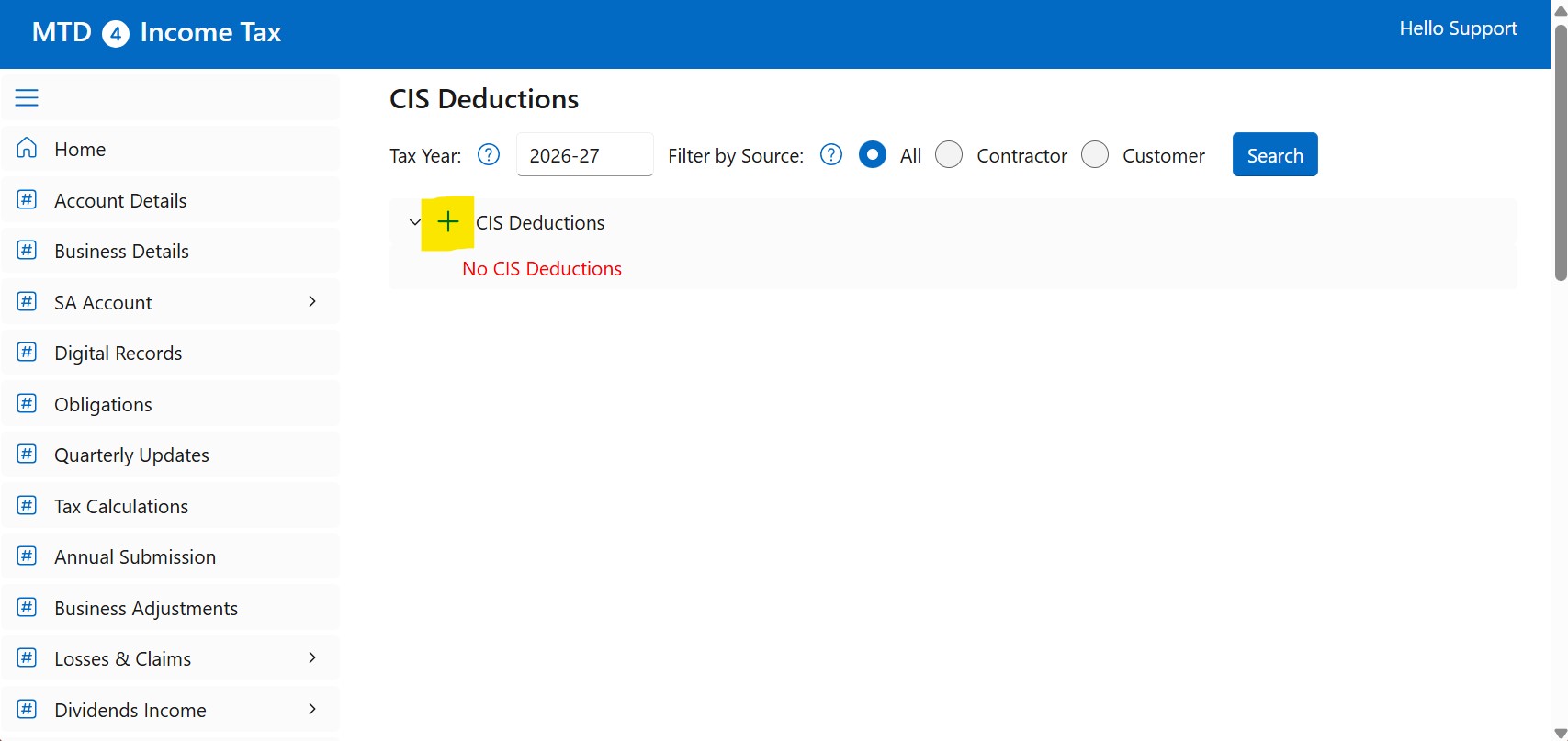
Click on the plus sign button:
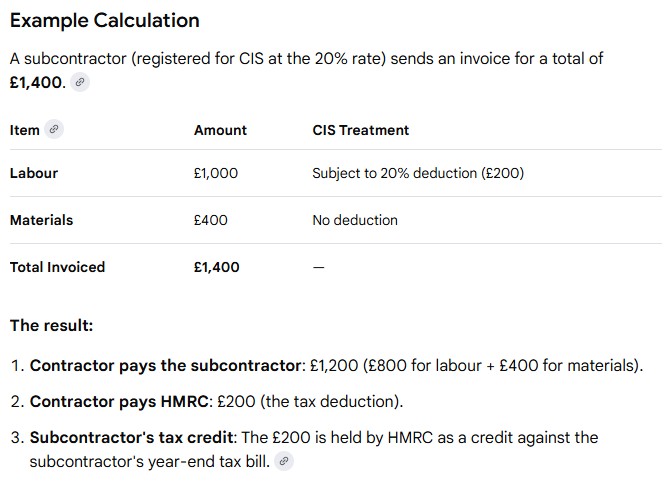
For example, if this is your invoice:
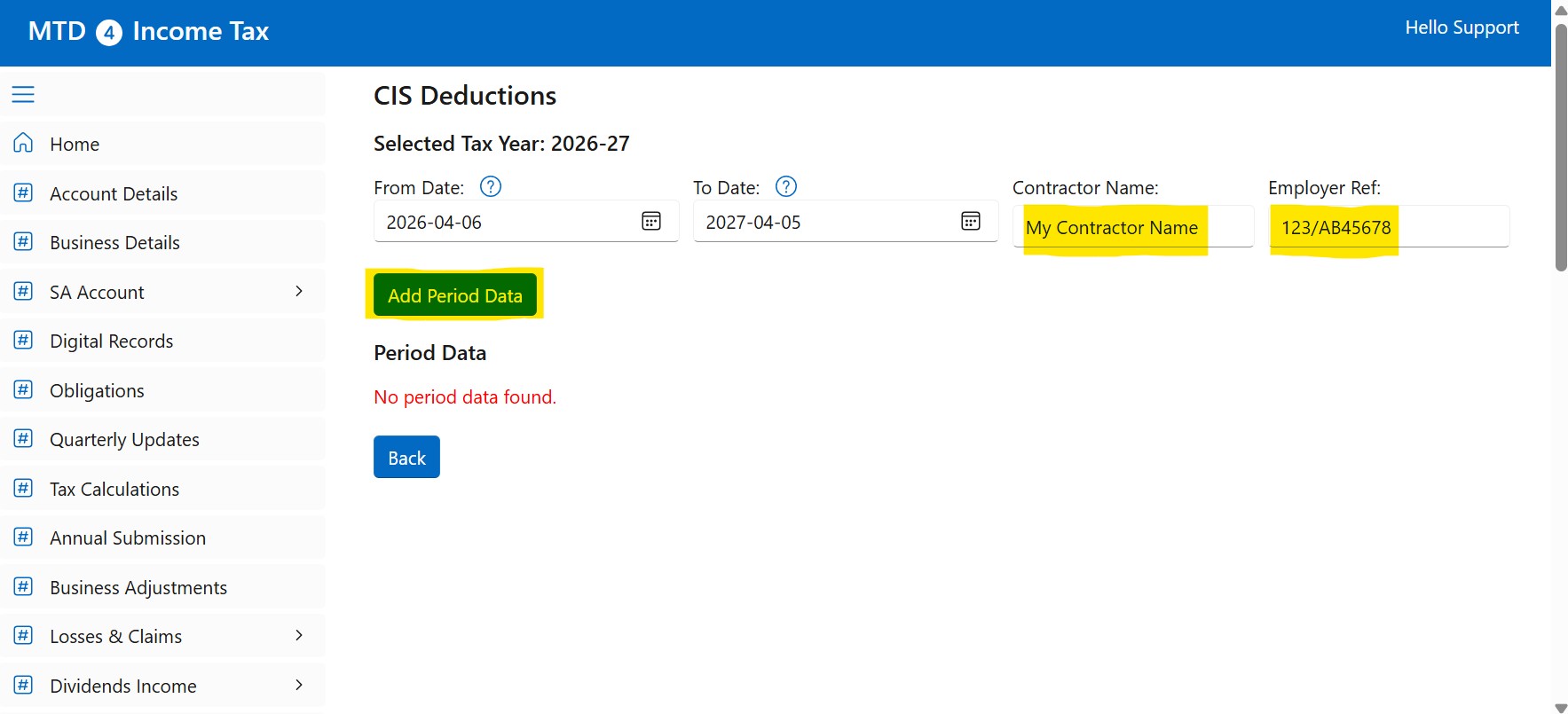
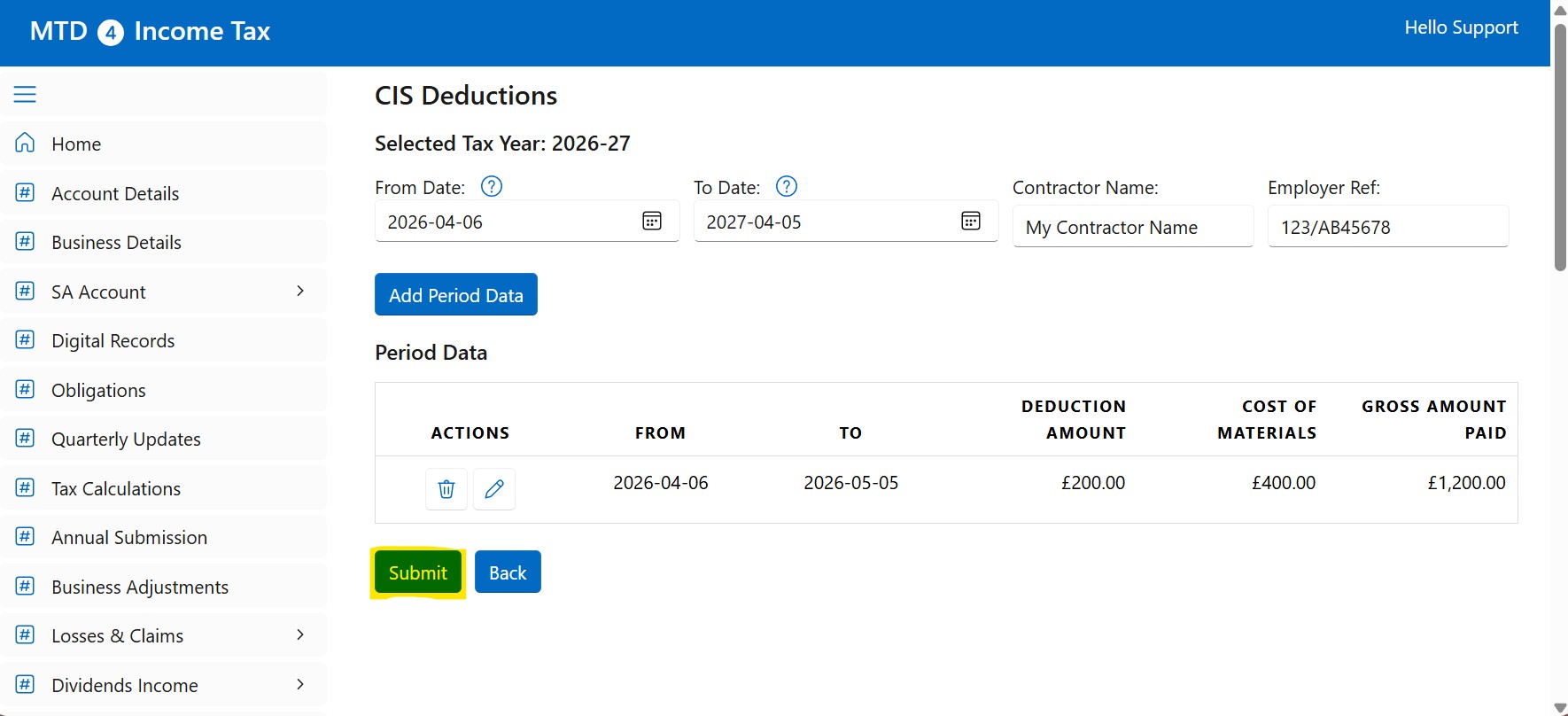
Type the Contractor Name, Employer Reference Number and click on the Add Period Data button:
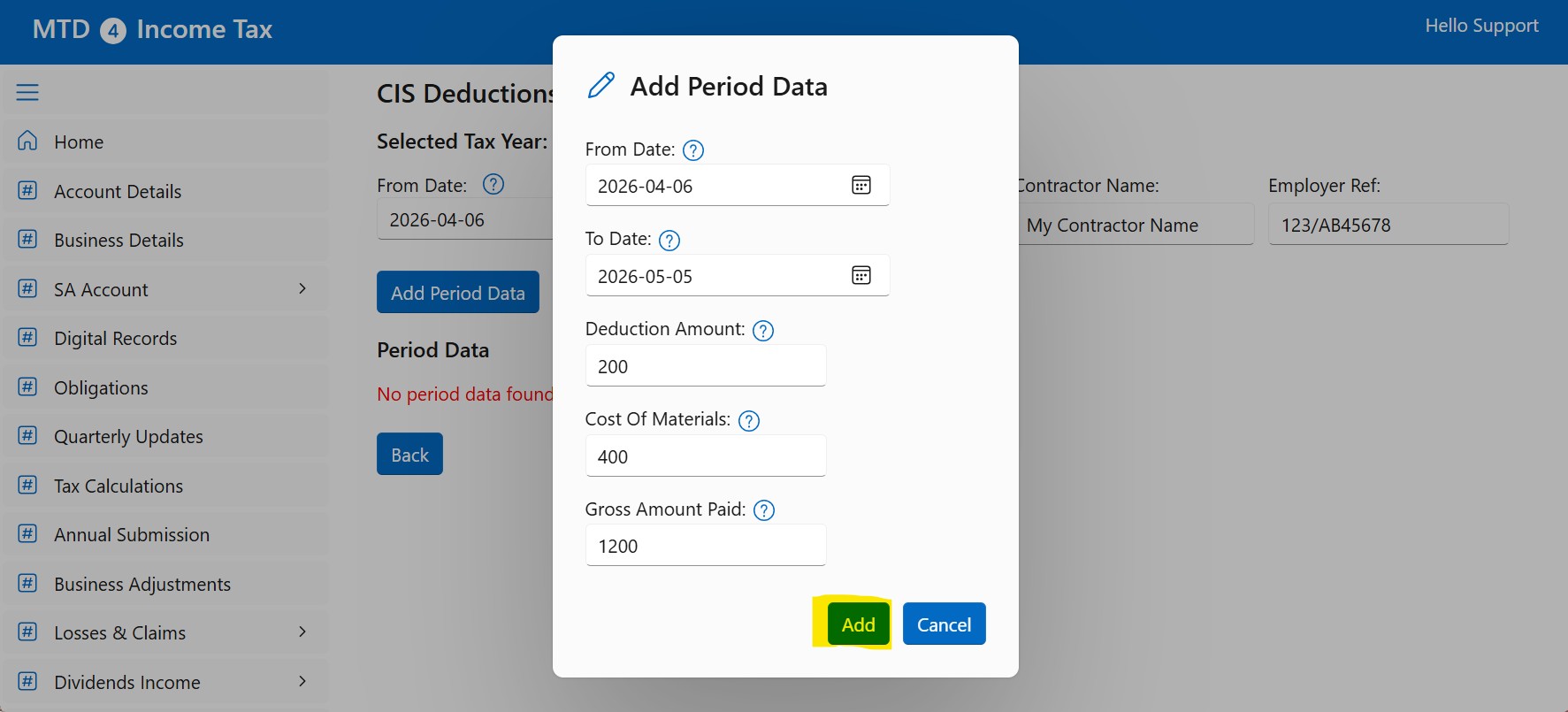
In the Add Period Data popup window, add the data of your invoice and click on the Add button. Do the same for the other invoices.
When you have done, click on the Submit button to send the data to HMRC.
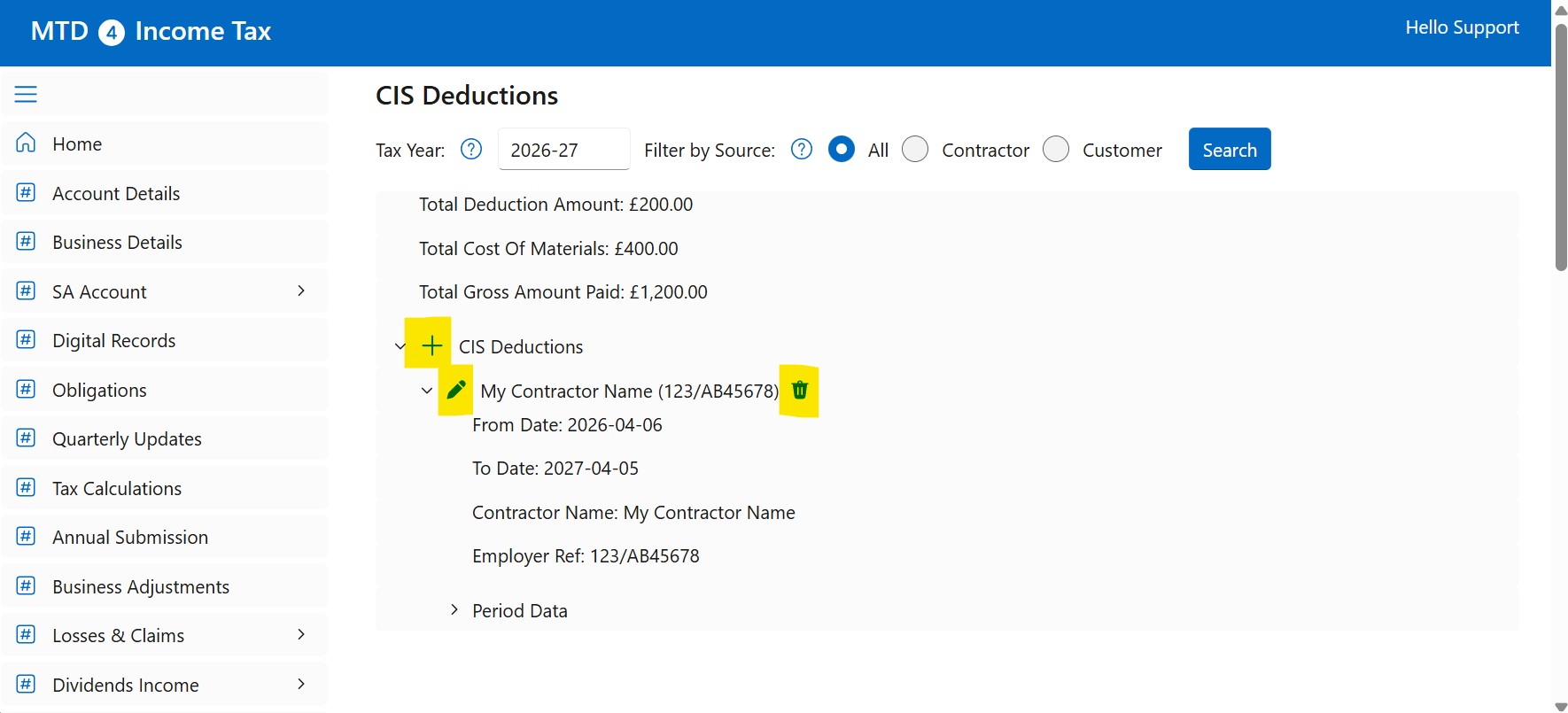
After the data has been sent to HMRC, you can edit it by clicking on the pencil or bin icon. Click on the plus sign to add invoices for a new Contractor.
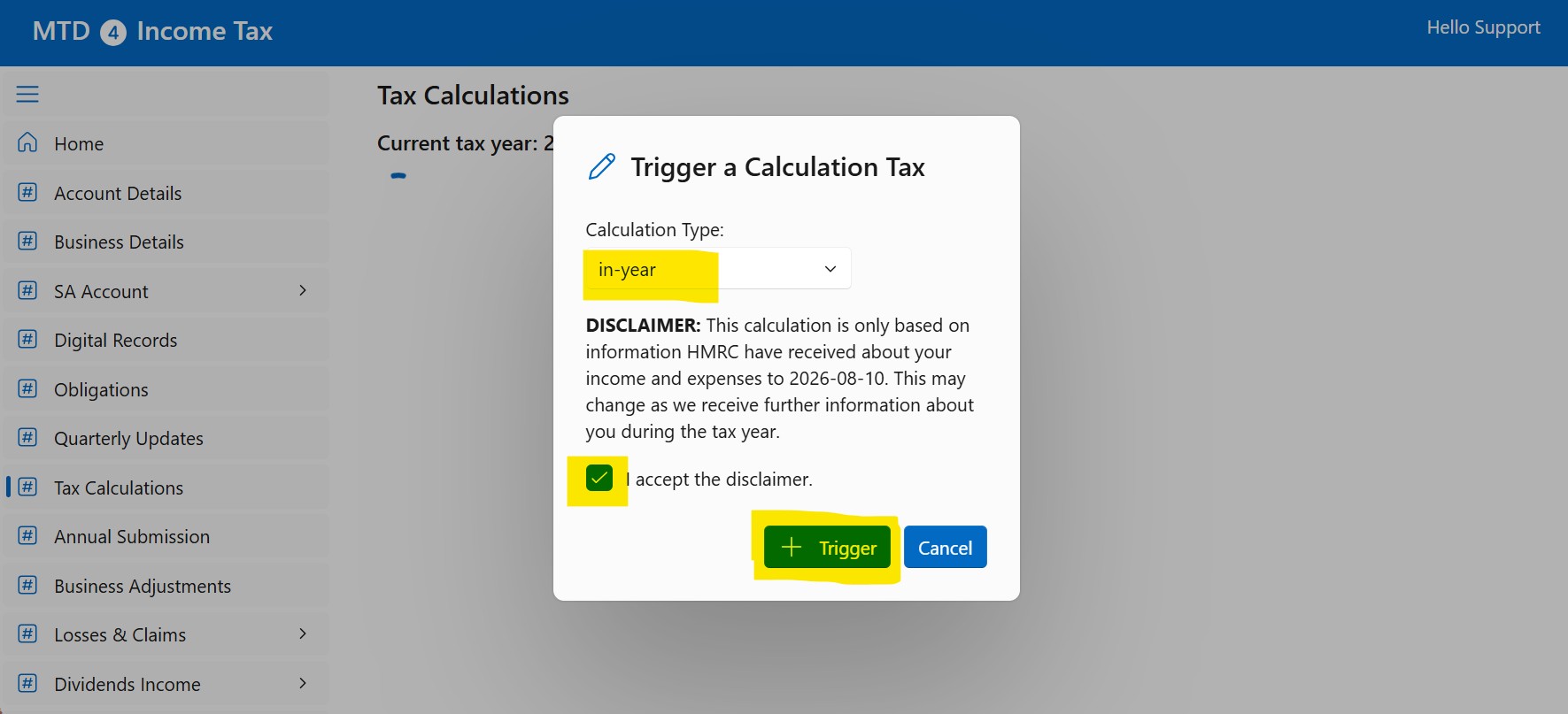
To get an estimate of your tax return, go to the Tax Calculation form and click on the Trigger a Tax Calculation button:
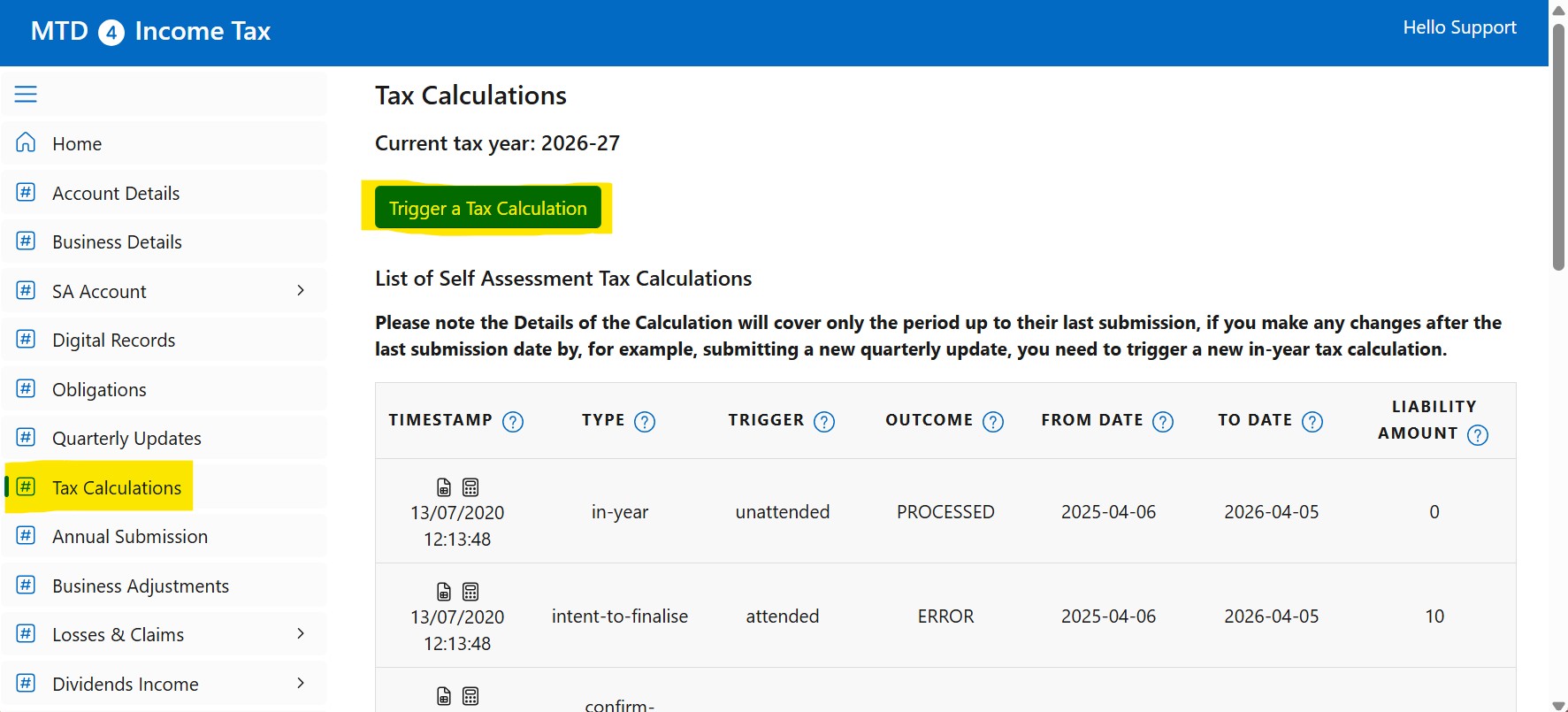
Select the in-year option, tick the box and click on the Trigger button. This will trigger an in-year Tax Calculation Report. You can also see the HMRC Assist Report.